
What are Google Slides templates? A Complete Guide
A Complete Guide
Presentations shape how people see your ideas. A messy slide deck can undercut even the strongest message. A clean, professional deck can make a simple idea look powerful. This is where Google Slides templates come in. They give you a ready-made structure so you can focus on content instead of design.
In this guide, we will explain what Google Slides templates are, why they matter, and how to pick the right one. We will also show you how SlidesBrain templates can save you hours of design work.
What Are Google Slides Templates?
A Google Slides template is a pre-built presentation file. It comes with layouts, fonts, colors, and design elements already in place. You simply add your own text, images, and data in Google Slides Template, such as Free SWOT Template Infographics PPT Google Slides Template.
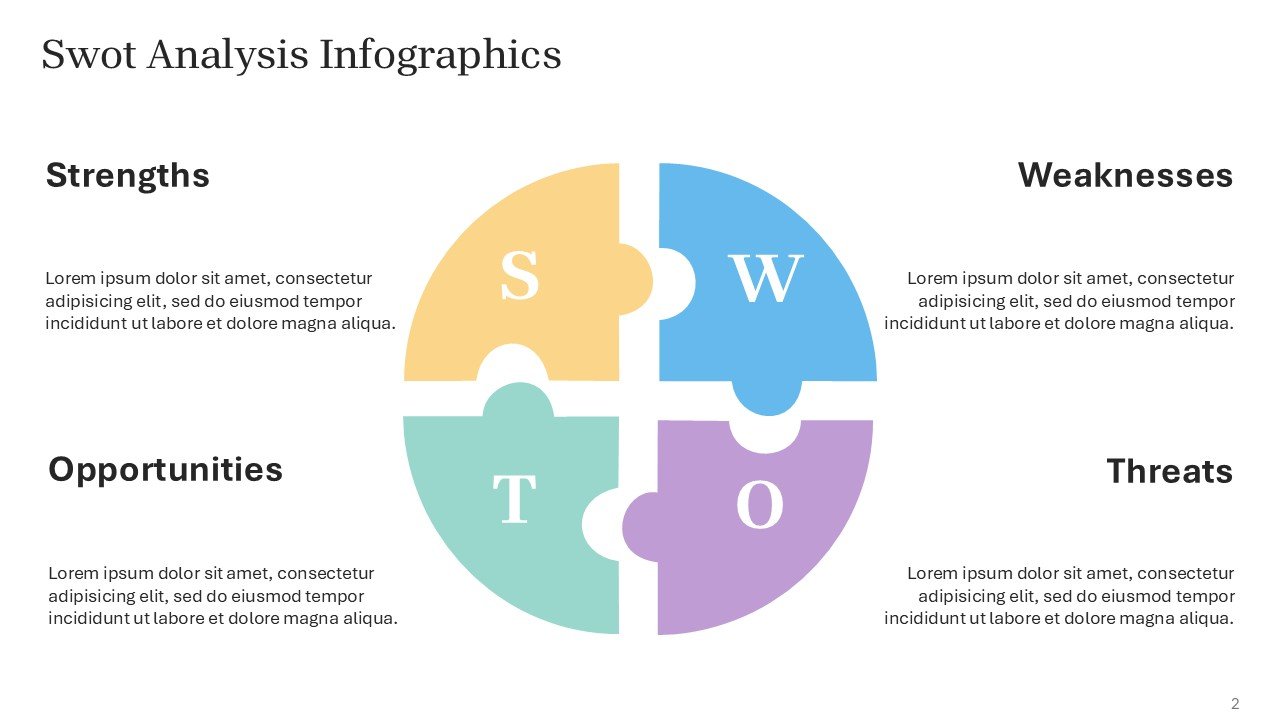
Think of it as a blueprint. The structure is done. The visual style is set. All you need to do is fill in the details.
Templates exist for almost every purpose. There are templates for business pitches, school projects, marketing reports, and personal portfolios. Some are simple and minimal. Others are bold and colorful. The right choice depends on your audience and your message.
Why Use a Google Slides Template?
Building a deck from a blank slide takes time. You need to choose fonts, pick colors, align text boxes, and design icons. A template removes that burden. Here are the main benefits.
Saves time
You do not have to start from zero. Templates already include layouts for title slides, agendas, charts, and closing slides. You just plug in your content.
Looks professional
Templates are usually designed by people with strong design skills. They use proper spacing, balanced color schemes, and clean typography. This gives your deck a polished look without any design experience.
Keeps your message clear
Good templates guide your eye. They use visual hierarchy to highlight key points. This helps your audience follow your story without getting lost.
Maintains consistency
When you use a template, every slide follows the same style. Fonts, colors, and spacing stay uniform throughout the deck. This makes your presentation feel organized and intentional.
Reduces stress
Design decisions can eat up a lot of time, especially under a deadline. A template takes that pressure off so you can focus on your message.
Types of Google Slides Templates
Templates come in different categories based on use case. Here are some common types.
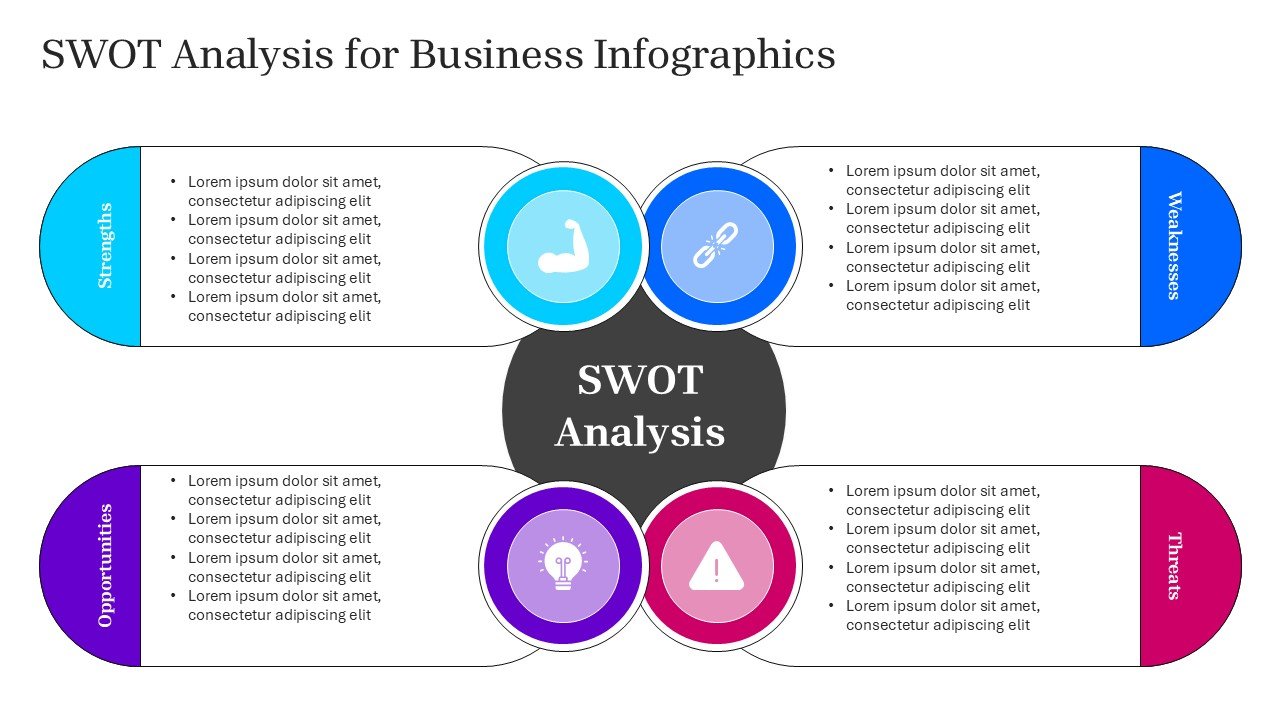
SWOT Analysis Business Presentation Templates
The SWOT Analysis for Business Infographics Fully Customizable PPTX and Google Slides are ideal for the deep analysis of the businesses. It helps to showcase strengths, weaknesses, opportunities and threats.
Editable 365 Calendar Templates
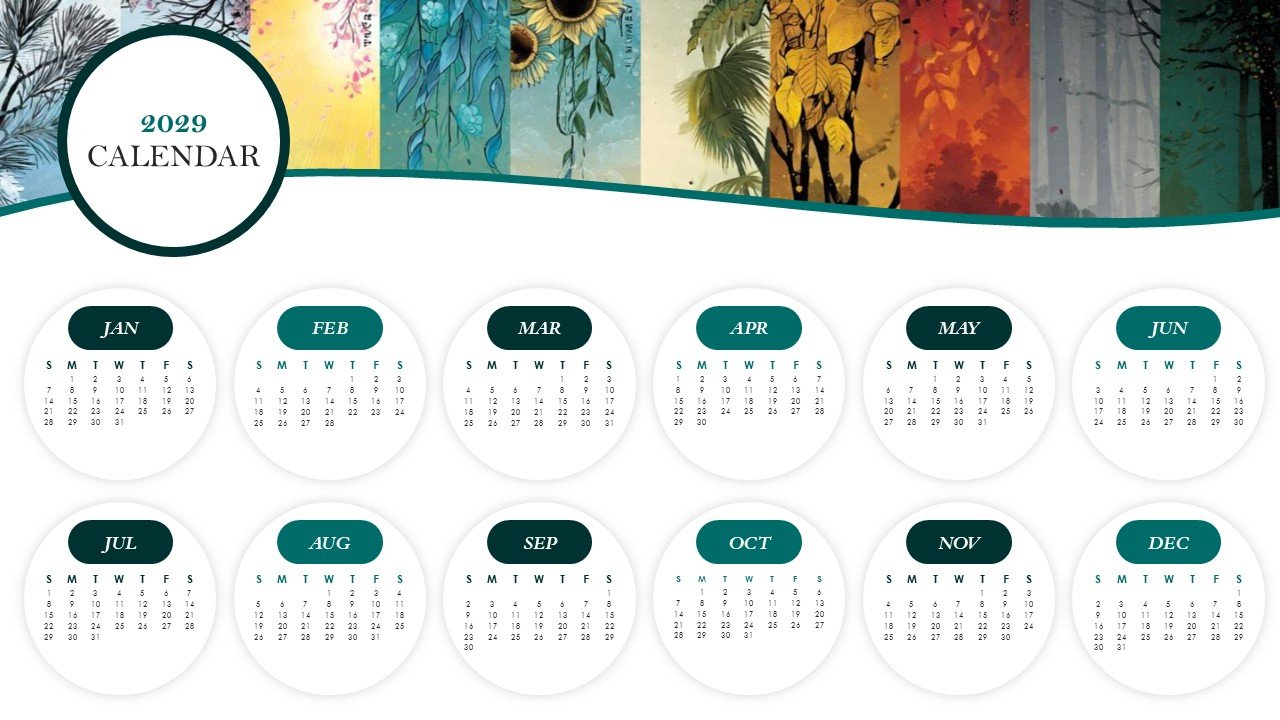
Teachers and students use these for lessons, book reports, and class projects for 365 days. These Editable 365 Days Calendar 2029 Planner PPT Template and Google Slides are often used by the companies and organizations for the presentation of schedules, events, and goals for the year. This template feature a green color theme, providing a productive and professional, yet personal planning aesthetic, throughout the presentation.
Infographic Style Templates
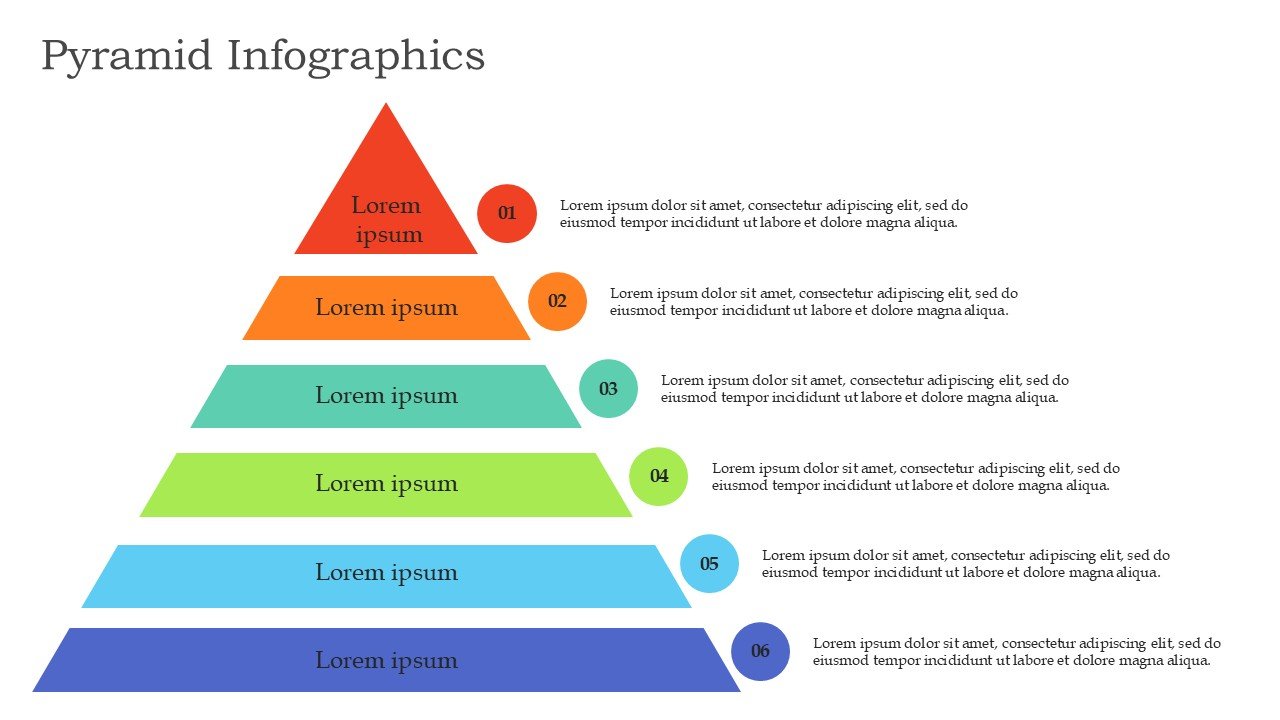
These focus on product launches, campaign reports, and social media strategy decks. They often include mockups and bold visuals, such as mentioned in Free Pyramid Infographics PPT and Google Slides. These use charts, icons, and diagrams instead of long paragraphs. They are useful for data-heavy topics like market research or performance reports.
If you need ready-to-use designs across these categories, you can explore the full collection of Google Slides templates on SlidesBrain. Each template is built with editable elements, so you can adjust colors and layouts without any design background.
Designers, photographers, and freelancers use these to showcase their work. They focus heavily on visuals with minimal text.
Key Features of a Good Template
Not all templates are equal. Some look nice but are hard to edit. Others are flexible but visually plain. Here is what to look for in a strong template.
Editable elements
Every shape, chart, and icon should be easy to change. You should be able to update colors, resize elements, and swap images without breaking the layout.
Consistent design system
A good template uses a fixed color palette and font pairing throughout. This keeps the whole deck visually unified.
Variety of layouts
A strong template includes multiple slide types. You need options for title slides, text and image combos, comparison slides, charts, and closing slides.
Compatibility
The template should work smoothly in Google Slides without breaking fonts or alignment. It should also convert cleanly to PowerPoint if needed.
Scalability
Good templates work for both short five-slide decks and detailed thirty-slide reports. The structure should not feel cramped or empty depending on the content length.
How to Use a Google Slides Template
Using a template is simple, even if you have never designed a slide before.
Step 1: Choose a template
Pick one that matches your topic and tone. A finance report needs a different feeling than a creative portfolio.
Step 2: Make a copy
Open the template and save your own copy. This keeps the original file untouched in case you want to start over.
Step 3: Replace placeholder text
Update the headlines, body text, and bullet points with your own content. Keep your sentences short and direct for better readability on slides.
Step 4: Swap images and icons
Replace any placeholder visuals with your own photos, logos, or charts. Make sure image quality stays sharp at full screen size.
Step 5: Adjust colors if needed
Match the template colors to your brand, if required. Most templates make this easy through a master slide or theme panel.
Step 6: Review the flow
Check that your slides tell a clear story from start to finish. Remove any slides you do not need and reorder sections if the flow feels off.
Common Mistakes to Avoid
Even with a great template, a few habits can weaken your deck.
- Overloading slides with text
A slide is not a document. Keep text short. Let the design and visuals support your spoken points.
- Ignoring contrast
Light text on a light background is hard to read. Stick to combinations with strong contrast.
- Mixing too many fonts
Stick to the fonts built into the template. Mixing several styles can make a deck look unplanned.
- Skipping a visual hierarchy
Not every line carries the same weight. Use size, bold text, and color to guide attention to the most important points first.
Why Choose SlidesBrain Templates
SlidesBrain builds Google Slides templates with both design quality and usability in mind. Every template is fully editable, so you are never stuck fighting with locked elements or broken layouts.
If you are working on a data-heavy report, the SlidesBrain library includes layouts built for charts and comparisons. If you want to add a clean pyramid chart to highlight priorities, this step-by-step pyramid chart guide walks you through the process, and the same logic applies well to Google Slides decks.
For projects that need to map out ideas or processes, the concept map guide on the SlidesBrain blog shows you how to build clear visual structures that fit naturally into any template.
If your slides include screenshots or product images, learning proper image masking can make a major difference in polish. The image masking guide breaks down the technique in simple steps.
Every SlidesBrain template is designed to grow with your content. Whether you need a quick five-slide pitch or a detailed thirty-slide report, the structure adjusts without losing visual balance.
Conclusion
Google Slides templates give you a strong starting point for any presentation. They save time, keep your design consistent, and help your message land clearly. The right template can turn a rushed deck into a confident, professional presentation.
If you want a head start on your next project, browse the full range of Google Slides templates on SlidesBrain. Each one is built to be fast, flexible, and easy to customize, so you can spend less time on design and more time on your message.
Frequently Asked Questions
Are Google Slides templates free to use?
Many templates are free, while others come at a small cost for premium design quality. Paid templates often include more layout variety, better support, and stronger visual polish.
Can I use a Google Slides template for PowerPoint?
Yes. Most modern templates, including those from SlidesBrain, are built to work smoothly in both Google Slides and PowerPoint. You can download and convert the file format without losing your layout.
Do templates work for any industry?
Yes. Templates are flexible by design. A finance template can be adapted for a marketing report. A creative portfolio template can work for a personal project. The key is adjusting tone, color, and content to fit your audience.
How many slides should a presentation have?
This depends on your goal. A short pitch usually works best with five to ten slides. A detailed report can run between fifteen and thirty slides. Keep each slide focused on one idea to avoid clutter.
Can I customize fonts and colors in a template?
Yes, in almost every case. Quality templates are built with editable master slides. You can change fonts, colors, and spacing to match your brand without breaking the layout.