
How Do I Get Templates for Google Slides? A Complete Guide

Google Slides templates save time and make presentations look professional. You can get them in three main ways: Google’s built-in gallery, a dedicated source like SlidesBrain for business-grade designs, or by building your own.
Moreover, Google Slides can be used for startup business presentation, educational presentation and international businesses. Though it seems easy to use, many people still have a common question “How do I get the perfect Google Slides for the presentation?” or how they can customize the slide.
This guide walks through each option, plus how to import a downloaded template, so you can pick what fits your deadline, your budget, and the look you need.
1. Use Google Slides’ Built-In Template Gallery
Google Slides ships with its own template gallery. It’s the fastest option because there’s nothing to download or import. Here are the simple steps that help you to use Google Slides in the best way.
- Open Google Slides and go to your Slides homepage.
- Click “Template Gallery” in the top right corner.
- Browse by category: work, education, or personal.
- Click a design to open a fresh copy in your Drive.
This gallery is best for quick, simple decks. The design range is limited, so it’s not the strongest choice for pitch decks or brand-heavy presentations.
2. Get a Polished Template from SlidesBrain
The built-in gallery is fine for a quick internal update, but it runs out of options fast. For a deck that actually needs to look good, SlidesBrain is built specifically for this: every template is a fully editable Google Slides file designed around real presentation use cases like pitch decks, consulting reports, and business proposals.
Each SlidesBrain template comes with a matching color palette, custom icon sets, infographic-style layouts for data, and master slides that keep formatting consistent from the first slide to the last. They’re sold as a one-time purchase, so there’s no subscription to manage.
Why it beats hunting for free templates:
- Original designs, not a layout thousands of other decks are already using.
- Built for presentations specifically, so charts, icons, and data layouts already fit the content.
- Clear commercial usage rights, which matters for client and investor-facing work.
- One-time cost instead of a recurring design subscription.
To use one, pick a template on SlidesBrain, download the file, and open it directly in Google Slides. No design software needed.
3. Import a SlidesBrain Template into Google Slides
SlidesBrain templates are delivered as PowerPoint (.pptx) files. Google Slides opens and converts these automatically, so you don’t need PowerPoint installed.
- Go to Google Drive and click “New” then “File upload.”
- Select the .pptx file from your computer.
- Right-click the uploaded file and choose “Open with Google Slides.”
- Check fonts and spacing, since some PowerPoint effects don’t convert perfectly.
This is the route you’ll use for any SlidesBrain template, since .pptx is the format every download comes in.
4. Build Your Own Custom Template
If your brand has specific colors, fonts, or a logo, building a custom master slide is often the better long-term move.
- Open Slide > Edit theme to access the master slide editor.
- Set your brand fonts, colors, and logo placement on the master.
- Create layout variants for title, content, and closing slides.
- Save a blank copy of the file as your reusable template.
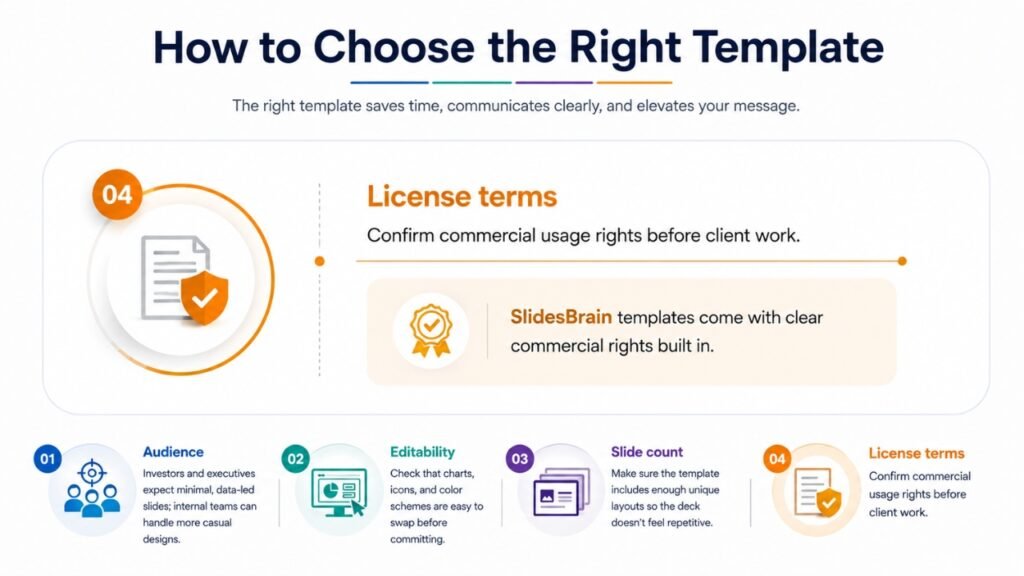
How to Choose the Right Template
- Audience: Investors and executives expect minimal, data-led slides; internal teams can handle more casual designs.
- Editability: Check that charts, icons, and color schemes are easy to swap before committing.
- Slide count: Make sure the template includes enough unique layouts so the deck doesn’t feel repetitive.
- License terms: Confirm commercial usage rights before client work. SlidesBrain templates come with clear commercial rights built in.
Frequently Asked Questions
Is Google Slides template gallery free?
Yes. Every template in Google’s built-in gallery is free for any Google account.
Can I use a PowerPoint template in Google Slides?
Yes. Upload the .pptx file to Google Drive, then open it with Google Slides. Most layouts and fonts convert correctly, though some advanced animations may not.
Where can I find professional Google Slides templates?
SlidesBrain offers Google Slides templates built specifically for business presentations, including pitch decks, consulting reports, and proposals, with consistent design and clear commercial usage rights.
Are SlidesBrain templates safe to use commercially?
Yes. SlidesBrain templates are sold as a one-time purchase with clear commercial usage rights, so they’re suitable for client work, agency use, and investor presentations.
How do I save my own Google Slides design as a reusable template?
Build out the master slides under Slide > Edit theme, remove the content, and save a blank copy in Drive. Make a fresh copy of that file each time you start a new deck.
Final Thoughts
There’s no single best way to get a Google Slides template. The built-in gallery covers basic needs in seconds. But the moment a deck has to represent your brand in front of clients, investors, or leadership, SlidesBrain is the better call: original designs, business-specific layouts, and clear commercial rights, all without a recurring fee. And if you’re building decks regularly under one brand, pairing a SlidesBrain template with your own custom master slide gives you the best of both: a strong starting design and full control over the details.