
How to Present Google Slides in Meet and Zoom

How to Present Google Slides in Google Meet and Zoom Seamlessly
You have a deck ready and a call in five minutes. Then the doubts start. Which window do you share? Will your notes show up on screen? Will the audience hear your video?
Sharing slides in a video call is simple once you know the steps. This guide walks through both Google Meet and Zoom, shows how to keep your speaker notes private, and covers the fixes for the most common problems.
Before You Start: A Short Checklist
A few minutes of prep prevents most screen-sharing trouble.
- Open your deck in Google Chrome. Meet works best with Chrome, and tab sharing is a Chrome feature.
- Close extra tabs and apps. This avoids awkward pop-ups and saves memory.
- Turn on Do Not Disturb. Mute email and chat notifications on your device.
- Check your speaker notes. Add short prompts, not full scripts.
- Run the deck once. Check that animations, links, and videos work.
How to Present Google Slides in Google Meet
Google Meet lets you share a single tab, a window, or your whole screen. For slides, sharing one tab is the cleanest option.
Step 1: Join your meeting and open your deck
Start or join the call. Open your presentation in a separate Chrome tab.
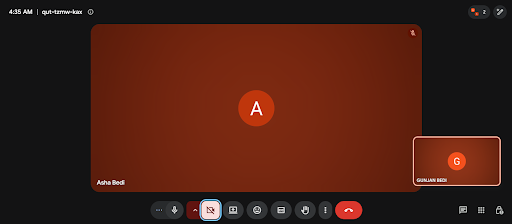
Step 2: Click Share Screen Now
Find the Share Screen Now button in the bottom toolbar of Meet. A menu appears with sharing options.
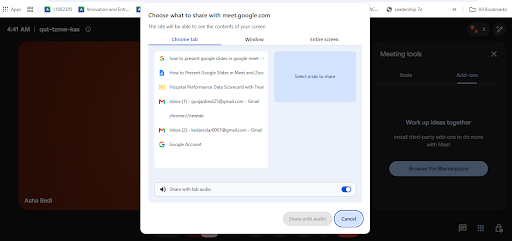
Step 3: Choose Entire Screen
Select Entire Screen, then pick your Google Slides tab from the list. If your slides include video or audio, turn on the option to share tab audio.
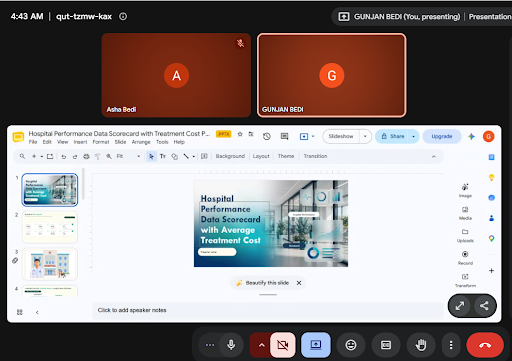
Step 4: Start the slideshow
Go back to your Slides tab and click Present in the top right corner. You can also press Ctrl + Enter on Windows or Cmd + Enter on Mac.
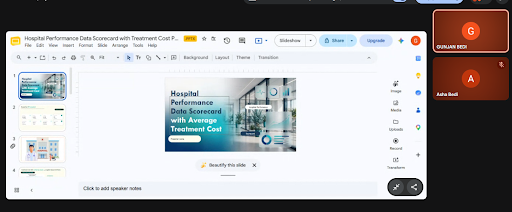
Step 5: Stop sharing when you finish
Press Esc to leave the slideshow. Then click Stop presenting in Meet. Your audience returns to the normal call view.
How to Present Google Slides in Zoom
Zoom shares a whole application window instead of a single tab. The steps are still quick.
Step 1: Open your deck in its own window
Open Google Slides in Chrome. For the cleanest share, drag the tab out so it sits in its own window.
Step 2: Click Share Screen
In your Zoom meeting, click Share Screen on the toolbar. The share window opens.
Step 3: Select the Chrome window
Under the Basic tab, choose the Chrome window that holds your deck. Tick Share sound if you plan to play video or audio. Then click Share.
Step 4: Start the slideshow
Click Present in Google Slides. The deck now fills the shared window. Move through slides with the arrow keys.
Step 5: Stop the share
Press Esc to exit the slideshow. Then click Stop Share in the Zoom banner.
How to Use Presenter View Without Showing Your Notes
The presenter view shows your speaker notes, a timer, and the next slide. It is handy on a call, but only if the audience sees the right window.
- Open the Present menu in Google Slides and choose Presenter view.
- The presenter view opens in a new window. The slideshow stays in the original one.
- Share the slideshow window or tab. Keep the presenter view window off the share.
- If you only have one screen, place The presenter views beside the call window and keep notes short.
Common Problems and Quick Fixes
- Audience sees a black or frozen screen. Stop the share and start again. Restart Chrome if it repeats.
- No sound from your video clip. In Meet, share a tab with audio on. In Zoom, tick Share sound before you click Share.
- Slides look cut off or blurry. Check that your deck uses the 16:9 ratio and that your display resolution is not scaled oddly.
- Animations lag. Close other tabs and apps. Simplify heavy transitions.
- Zoom cannot find your window. Make sure the Chrome window is not minimized, and check screen recording permissions on Mac.
Design Slides That Work Well on Video Calls
Call participants watch on small laptop screens and sometimes phones. Dense slides lose people fast. A few habits help.
- Keep one idea per slide.
- Use large fonts, ideally 24 pt or bigger for body text.
- Pick high-contrast colors so text stays readable when compressed.
- Use simple visuals in place of long paragraphs.
Not Sure What Presentation Designs Work Well on Google Meet and Zoom? Try SlidesBrain Today!
Good structure saves time here. SlidesBrain offers professionally designed, fully editable Google Slides templates with clean layouts, readable typography, and ready-made visuals. You replace the placeholder text, and your deck is call-ready.

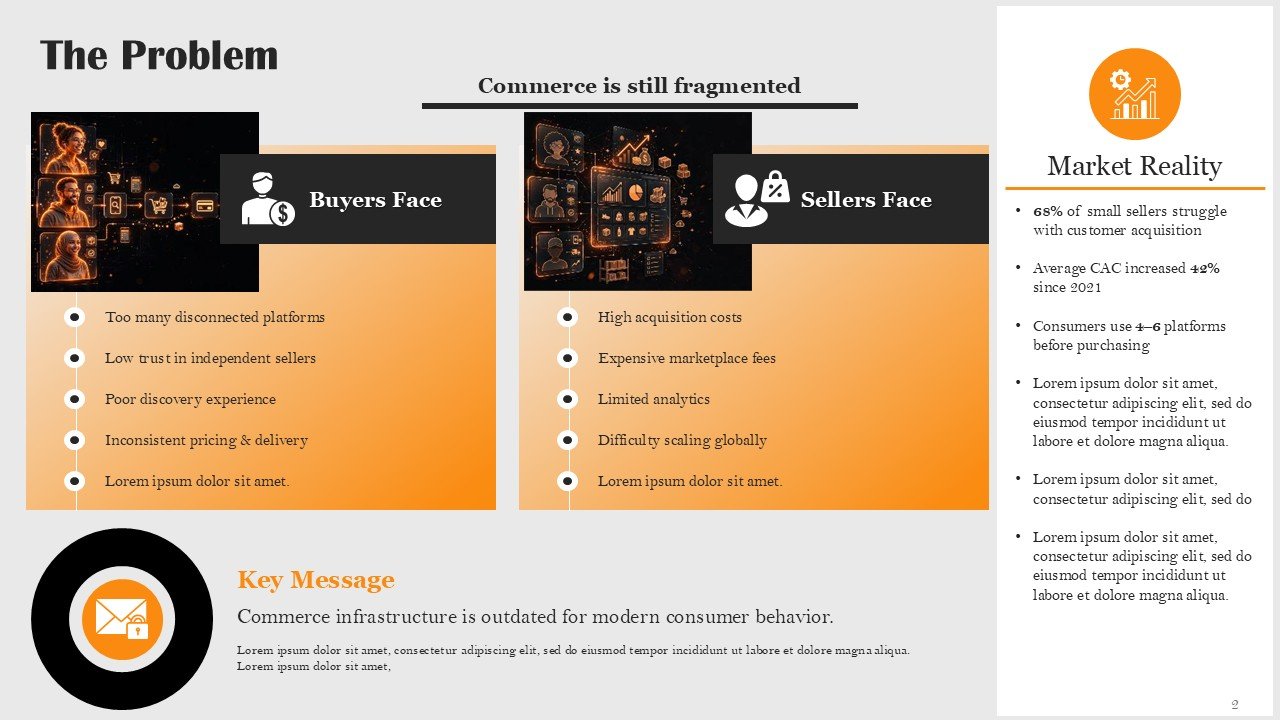
Ideal for highlighting startup business problems and how you can provide the right solution. Startup companies can use these templates for sales pitch, discussing future plans and pulling investment.
Showcase the world of automobile manufacturing with professionally designed slides from SlidesBrain. Perfect for students, educators, and industry professionals, this free template helps you present manufacturing processes, automotive technologies, production systems, and industry trends with clarity and style. Easily customize the slides in PowerPoint or Google Slides to suit your needs. Download for free and drive your next presentation toward success!
Free AI Presentation Maker Tool
If you are short on time, the free AI Presentation Maker Tool on SlidesBrain can also help you draft a structured deck, which you can refine before you present.

Why to Use This Free AI Presentation Maker Tool by SlidesBrain?
Create stunning, professional presentations in minutes with SlidesBrain’s free AI presentation maker. Save time and effort with AI-powered slide creation, attractive designs, and easy customization. Whether you’re a student, teacher, or professional, SlidesBrain helps you turn your ideas into engaging presentations quickly and effortlessly. Work smarter, present better, and bring your ideas to life for free!
Frequently Asked Questions
Can I present Google Slides in Zoom without sharing my whole screen?
Yes. Choose the specific Chrome window in the Zoom share menu instead of Desktop. Only that window is visible to the audience.
Is it better to share a tab or a window in Google Meet?
Share a tab when you only need your slides. Tab sharing also supports audio and keeps other apps hidden.
Can I see my speaker notes while presenting on a call?
Yes. Open the presenter view in a separate window and share only the slideshow window.
Do I need Google Slides templates to present well on a call?
No, but they help. A well-built template gives you consistent layouts and saves design time, so you can spend more effort on your message.