
How to Convert a PPT to Google Slides (Step-by-Step Guide)
To convert a PPT to Google Slides, upload the PowerPoint file to Google Drive, then open it with Google Slides. Google converts the file automatically, and you can edit, share, or download it in any format you need. The whole process takes less than a minute for most presentations.
That’s the short answer. But if you’ve ever opened a converted deck and found your fonts swapped, your images shifted, or your animations gone, you know the process isn’t always that clean. This guide walks through every method for converting a PPT to Google Slides, explains why formatting sometimes breaks, and shows you how to avoid the most common headaches.
Why Convert a PowerPoint to Google Slides?
Most people switch formats for one of three reasons. They need to collaborate with a team in real time. They want to access their deck from any device without installing software. Or they’re presenting from a Chromebook or shared computer where PowerPoint isn’t installed.
Google Slides also makes version control simple. Every change is saved automatically, and you can see exactly who edited what and when. For teams that review decks together, that alone is worth the switch. Check more readymade Google slides on https://slidesbrain.com/
Method 1: Upload to Google Drive and Open with Google Slides
This is the most reliable method, and it’s the one most people end up using.
- Go to drive.google.com and sign in to your Google account.
- Click New, then File Upload, and select your PPT or PPTX file.
3. Once the upload finishes, double-click the file. It opens in a preview window.
4. Click Open with Google Slides at the top of the preview.
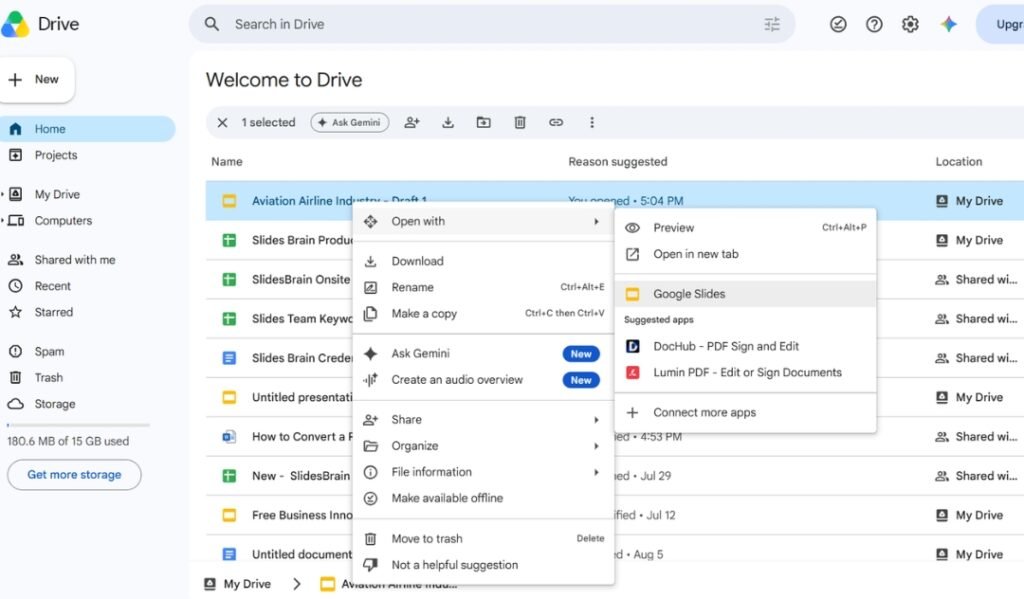
5. Google converts the file and creates an editable Google Slides version. Your original PPT stays untouched in Drive.
If you want the converted file to become a native Google Slides file (instead of a Google Slides view of a PowerPoint file), open it, go to File, then Save as Google Slides. This creates a separate copy in Google’s own format, which tends to preserve formatting better on future edits.
Method 2: Convert Directly Inside Google Slides
you’re already working in Google Slides, you don’t need to visit Drive first.
- Open slides.google.com and click the folder icon to open the file picker.
- Select the Upload tab.
- Drag your PPT file into the window, or click Select a file from your device.
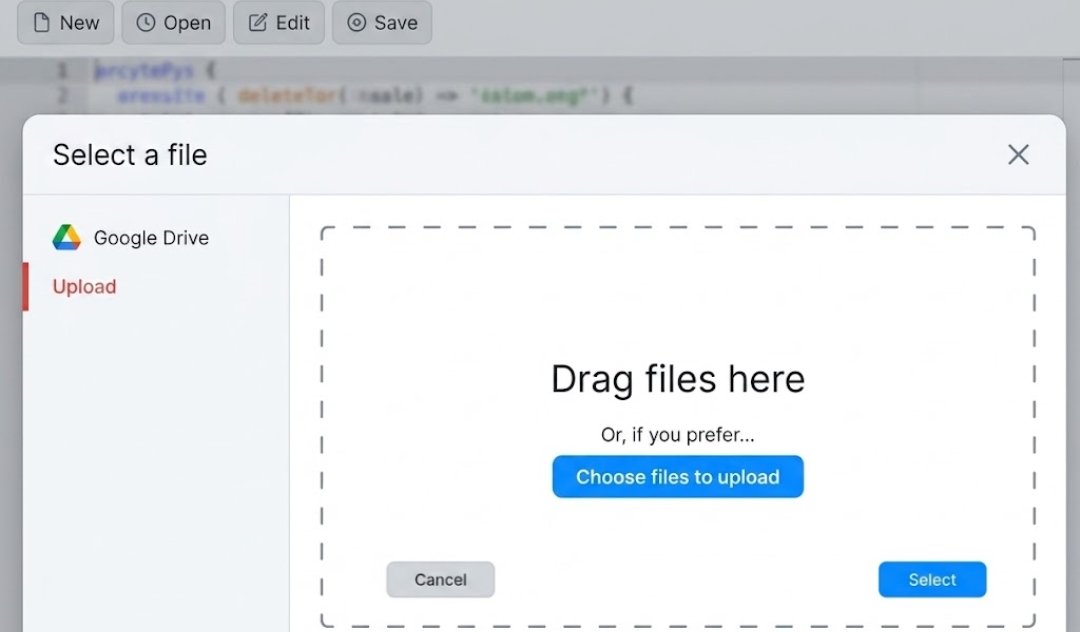
5. Google uploads and converts it automatically, then opens it in edit mode.
This method is faster if you’re already mid-project in Google Slides and just need to pull in one more file.
Method 3: Convert on Mobile
The Google Slides app for iOS and Android supports the same upload and conversion process.
1. Open the Google Drive app and tap the plus icon to upload your PPT file.
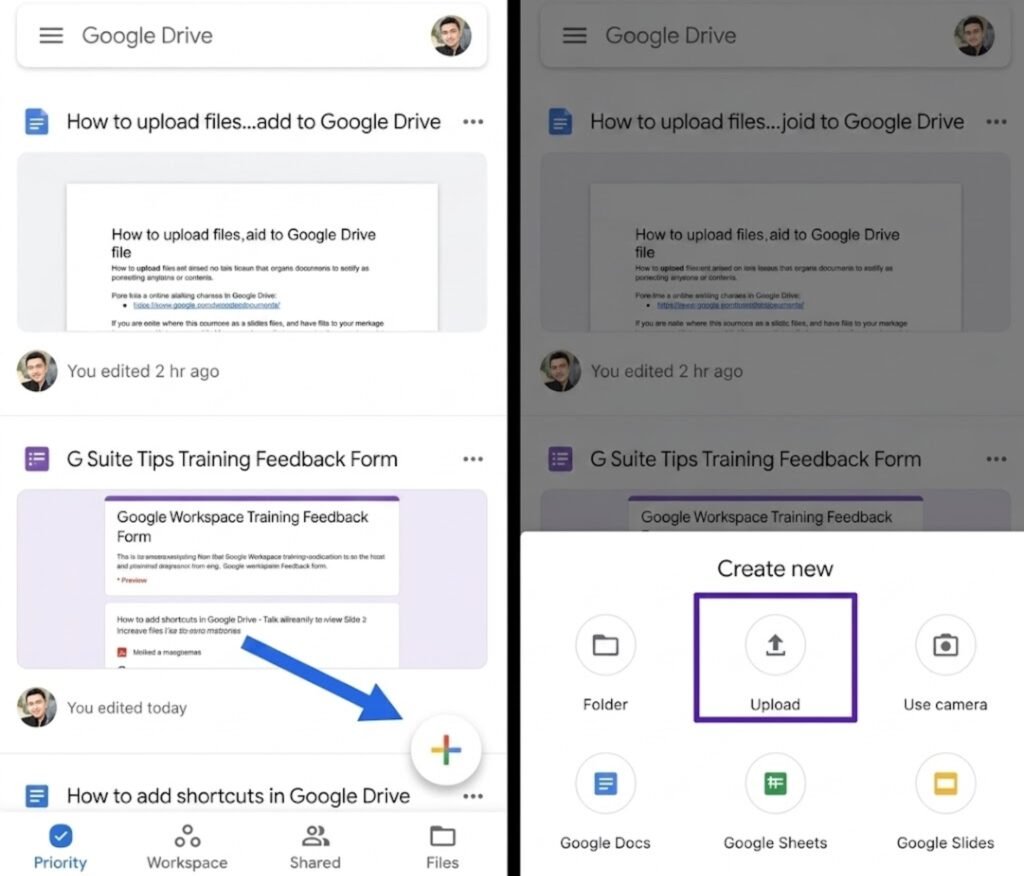
2. Once uploaded, tap the file and choose Open with Google Slides.
3. The app converts the file so you can view and edit it on your phone or tablet.
Mobile conversion works well for reviewing a deck on the go, but for detailed formatting fixes, a desktop browser gives you far more control.
Common Formatting Issues After Conversion, and How to Fix Them
Google Slides and PowerPoint don’t share the exact same rendering engine, so some elements can shift during conversion. Here’s what to watch for.
- Fonts change or default to Arial. Google Slides only recognizes fonts available in its own library or Google Fonts. If your PPT uses a licensed or custom font, it gets swapped automatically. Fix this by selecting the text and manually reassigning a Google Font that’s visually close to the original.
- Images or text boxes shift position. This usually happens with complex layered layouts, grouped objects, or elements placed outside the standard slide boundary. Ungroup and reposition manually if a slide looks off.
- Animations and transitions disappear or simplify. Google Slides supports a smaller set of animations than PowerPoint. Advanced motion paths and morph transitions won’t carry over, so you’ll need to rebuild them using Slides’ native animation panel.
- Charts lose their live data link. If your PPT chart was linked to an Excel file, that link breaks on conversion. You’ll need to either rebuild the chart in Google Sheets and link it, or paste it in as a static image.
- Spacing and margins look tighter or looser. This is usually a slide-size mismatch. Check File, then Page setup, and confirm both files use the same aspect ratio, either 16:9 or 4:3.
How to Get a Cleaner Conversion From the Start?
The single biggest factor in a smooth conversion is the template your presentation was built on. Decks built with standard fonts, simple layering, and web-safe design elements convert almost perfectly. Decks built with heavily customized layouts, embedded objects, or rare fonts tend to break more.
If you’re starting a new presentation and want to avoid conversion problems altogether, it helps to begin with a template that’s already built for cross-platform use. SlidesBrain’s PowerPoint templates are designed with this in mind. Every layout uses standard fonts and clean object structures, so they hold their formatting whether you present it from PowerPoint, Google Slides, or Keynote.
SlidesBrain also offers themes built natively for Google Slides, so if your workflow lives entirely in Google’s ecosystem, you can skip the conversion step altogether and start with a file that’s already in the right format. It’s a small decision early on that saves a lot of manual cleanup later.
A Quick Pre-Conversion Checklist
A few minutes of prep before you upload can save you a lot of cleanup after. Run through this list before converting an important deck.
- Check which fonts you used. If any are non-standard, note them down so you can find close matches in Google Fonts.
- Flatten complex graphics. If you built a slide from many layered shapes, consider grouping them or saving that slide as a single image before uploading.
- Note any embedded video or audio. These often need to be re-linked or re-uploaded after conversion.
- Confirm your slide size. Match the aspect ratio in PowerPoint’s Design tab to what you plan to use in Google Slides.
- Keep a backup copy of the original PPT. Conversion doesn’t delete your source file, but it’s good practice to keep an untouched copy before you start editing.
Teams that present often, whether that’s sales decks, classroom lessons, or investor updates, tend to build this checklist into their routine after running into a formatting surprise once or twice. It’s a small habit that prevents a scramble five minutes before a meeting.
Should You Convert PPT to Google Slides, or Just Import as Needed?
If you present regularly from PowerPoint but only need occasional Google Slides access, you don’t have to fully commit to one format. Google Slides can open and edit PPT files directly without converting them into a permanent Google Slides file, and you can export back to PPTX any time from File, then Download.
If your team collaborates daily inside Google Workspace, converting fully to native Google Slides format is usually worth it. It gives you real-time co-editing, comment threads, and version history without any file-type friction.
Final Thoughts
Converting a PPT to Google Slides is usually a two-click process, and for most standard presentations, it works without a hitch. The exceptions come down to fonts, animations, and layout complexity, all of which are easy to fix once you know where to look.
If formatting headaches are a recurring problem for your team, the fix is often upstream of the conversion itself. Starting with a template built for both platforms, like the ones on SlidesBrain, means there’s a lot less to clean up after you convert. It’s a simple way to keep your presentations consistent no matter which tool you or your audience opens them in.
Frequently Asked Questions
Does converting a PPT to Google Slides lose quality?
Generally no. Text, images, and basic layouts convert cleanly. The elements most likely to change are custom fonts, complex animations, and linked charts, as covered above.
Can I convert a Google Slides file back to PPT?
Yes. Open the file in Google Slides, go to File, then Download, and choose Microsoft PowerPoint (.pptx). The file downloads as a standard PPT you can open in Microsoft Office.
Is there a file size limit for converting PPT to Google Slides?
Google Slides supports files up to 100MB and 200 slides. Very large decks with high-resolution video or images may need to be trimmed before uploading.
Do I need PowerPoint installed to convert a file?
No. You only need a Google account and a browser. The entire conversion happens inside Google Drive or Google Slides.
Will my speaker notes carry over?
Yes. Speaker notes convert along with the rest of the slide content and appear in the same notes panel below each slide in Google Slides.
Can I convert multiple PPT files at once?
Google Drive lets you upload several files in one batch, and each one converts individually once you open it with Google Slides. There isn’t a true bulk-conversion tool, so for large batches, plan for a bit of manual review afterward.