
How to Change Slide Size in PowerPoint and Google Slides (16:9 vs 4:3)

Slide size sets the aspect ratio and physical dimensions of an entire presentation. Get it wrong and text overflows, images stretch, and layouts break the moment you switch screens. This guide covers exactly how to change slide size in PowerPoint and Google Slides, when to use 16:9 versus 4:3, and how to avoid the scaling issues that come with resizing a deck that already has content.
16:9 vs 4:3: What Is the Difference?
16:9 is the widescreen format and the current default in PowerPoint and most modern templates. It measures 13.333 by 7.5 inches, matching the shape of laptop screens, monitors, and HDTVs. 4:3 is the older standard format, measuring 10 by 7.5 inches, built for the square-ish screens and projectors common before 2010.
Aspect | 16:9 (Widescreen) | 4:3 (Standard) |
Dimensions | 13.333 in x 7.5 in | 10 in x 7.5 in |
Pixel size | 1920 x 1080 px | 1024 x 768 px |
Default in | PowerPoint 2013 and later | Older PowerPoint, Google Slides classic default |
Ideal for | Modern monitors, laptops, projectors, online sharing | Older projectors, printed handouts, legacy templates |
How to Change Slide Size in PowerPoint?
Switch Between 16:9 and 4:3
- Open the Design tab on the ribbon.
- Click Slide Size on the far right of the Design tab.
- Choose Standard (4:3) or Widescreen (16:9) from the dropdown.
If the deck already contains slides, PowerPoint prompts you to scale existing content. This step works the same way on both Windows and Mac.
Set a Custom Slide Size
- Go to Design, then Slide Size, then Custom Slide Size. If you are using Window 7 or 10, then see the page set-up option.
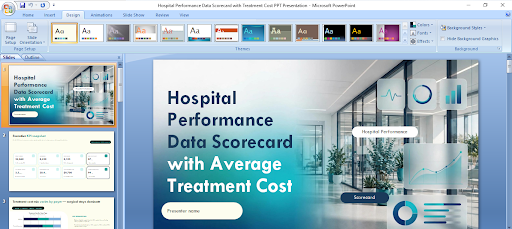
2. Under the Slides size or page set up option pick a preset from the Slides sized for dropdown (A4, Letter, Banner, On-screen Show) or type exact width and height values.
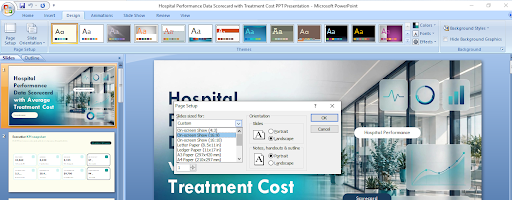
3 . Set Orientation to Portrait or Landscape.
4 . Click OK.
Use this method for posters, A4 print handouts, or a portrait-style deck. Note that a single PowerPoint file can only use one orientation throughout. Mixing portrait and landscape slides in the same deck is not supported.
Maximize vs Ensure Fit
When you resize a deck that already has content, PowerPoint asks how to scale it:
- Maximize: scales content up to fill the new size. Existing elements may get cropped at the edges.
- Ensure Fit: scales content down so nothing is cut off. This can leave extra margin around your existing elements.
Ensure Fit is the safer default when you cannot afford to lose any content. Choose Maximize only when you are confident nothing important sits near the slide edges.
Change Slide Size in PowerPoint for the Web
Open the Design tab in PowerPoint for the web and click Slide Size, then choose Standard (4:3) or Widescreen (16:9). Custom dimensions are only available in the desktop app.
How to Change Slide Size in Google Slides?
- Open the presentation in Google Slides.
- Click File, then Page setup.
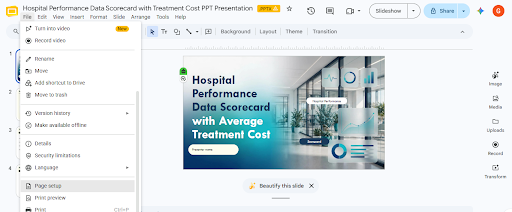
3 . Choose a size from the dropdown: Standard (4:3), Widescreen (16:9), Widescreen (16:10), or Custom.
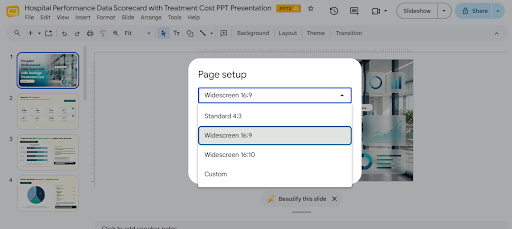
4 . For custom, enter the width and height and select a unit: inches, centimeters, points, or pixels.
5 . Click Apply or OK.
Google Slides does not offer a Maximize or Ensure Fit prompt. Existing text boxes and images keep their original size and position, so elements can end up misaligned after a resize. Plan to manually readjust images, text boxes, and master slide elements once the new dimensions are applied. Like PowerPoint, Google Slides applies one size to the entire file. You cannot mix slide sizes within a single presentation.
Which Slide Size Should You Choose?
- Use 16:9 by default. It matches virtually every modern screen, from laptops to conference room displays to video export formats, and it is the standard size for templates built after 2013.
- Use 4:3 only when you know your audience will view the deck on older projection equipment, or when a specific brand or academic template still requires it.
- Use a custom size for print handouts, posters, social media carousels, or any format that does not match a standard screen ratio.
Struggling With Sizing? Skip the Resizing Headache With SlidesBrain
The cleanest way to avoid slide size problems is to never need to resize in the first place. SlidesBrain’s presentation template library is built specifically for this: every template is available in both 16:9 and 4:3, designed and tested in the correct dimensions from the start, so nothing stretches, crops, or shifts when you open it.
If you are building a deck from scratch, SlidesBrain’s AI PowerPoint generator handles the aspect ratio for you automatically, laying out text, images, and charts to fit the size you choose instead of forcing you to fix a mismatched layout after the fact.
Browse the SlidesBrain template library to start with a deck that is already sized right, or try the AI generator to build a fully proportioned presentation in minutes.
Frequently Asked Questions
Can I resize just one slide in a presentation?
No. In both PowerPoint and Google Slides, slide size is a document-level setting. Changing it applies to every slide in the file. To use two different sizes, save separate copies of the presentation.
Will resizing distort my images and text?
It can. In PowerPoint, choosing Maximize or Ensure Fit controls how content scales, though images can still stretch if their aspect ratio does not match the new slide shape. In Google Slides, elements do not auto-scale at all, so manual repositioning is often needed.
What is the default slide size in PowerPoint?
Widescreen (16:9), at 13.333 by 7.5 inches, has been the default since PowerPoint 2013.
What is the default slide size in Google Slides?
Google Slides defaults to Widescreen (16:9) for new presentations, with Standard (4:3) and 16:10 available as alternatives under Page setup.
How do I avoid resizing problems altogether?
Set the slide size before you add any content. Retrofitting a size change onto a finished deck is where most layout issues happen. Starting from a template that is already built in your target ratio removes this problem entirely.