
How to Print PowerPoint with Notes: A Complete Step-by-Step Tutorial
Printing a PowerPoint deck is simple. Printing it with your speaker notes attached is where most people get stuck, usually because the default print settings quietly hide the notes unless you know exactly which menu to open. This happens right before a big meeting or a classroom presentation more often than it should.
This guide covers exactly how to print PowerPoint slides with notes on Windows, on Mac, and how to handle the same task in Google Slides, along with the formatting fixes that keep the printed page readable instead of cramped.
What 'Print With Notes' Actually Means?
PowerPoint has several built-in print layouts, and only one of them includes your speaker notes. The default layout most people print from shows just the slide, full page, with no notes at all. The layout you want is called Notes Pages. It prints a smaller image of the slide at the top of the page with your typed speaker notes underneath, formatted for reading rather than for presenting.
How to Print PowerPoint With Notes on Windows?
Step 1: Open the Print Menu
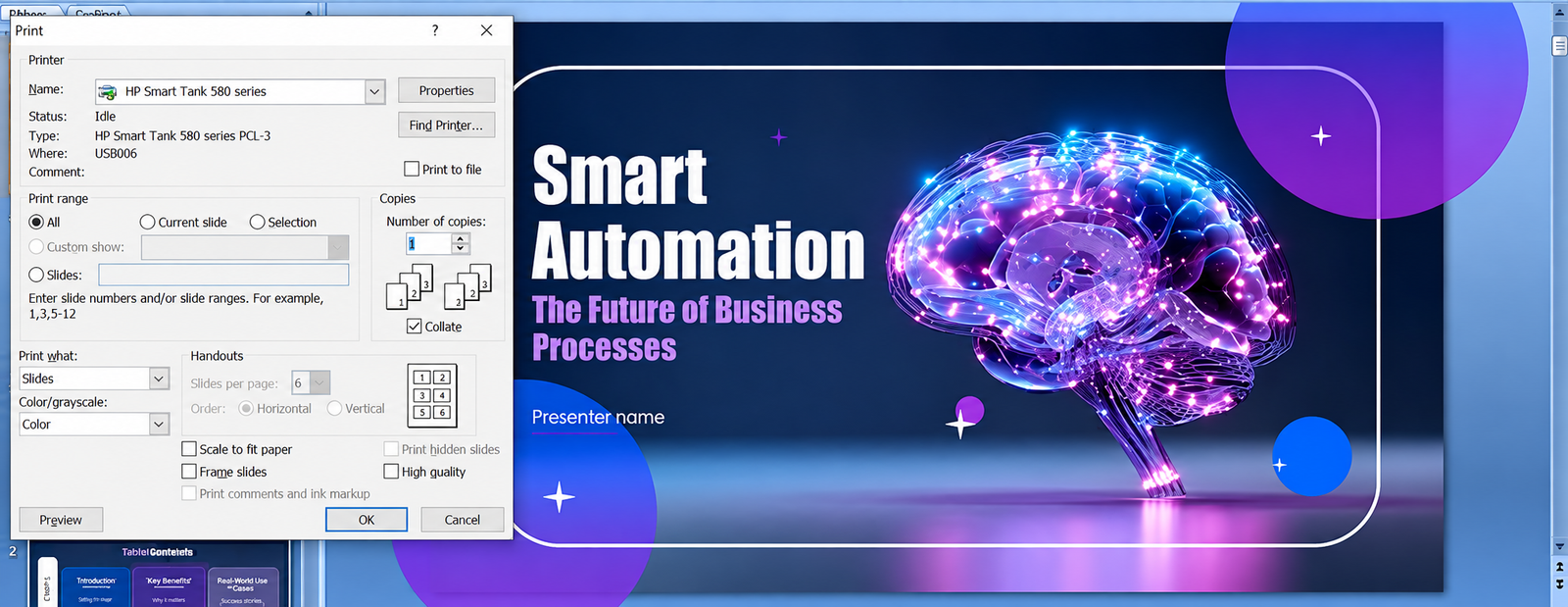
Open your presentation in Microsoft PowerPoint. Go to File, then Print, or use the keyboard shortcut Ctrl+P. This opens the print settings panel on the left side of the screen with a preview on the right.
Step 2: Change the layout to Notes Pages
Under Settings, click the dropdown that says Full Page Slides. In the menu that opens, look under the Print Layout section and select Notes Pages. The preview on the right should immediately update to show the slide with a notes section underneath it.

Step 3: Check the preview before printing
Scroll through a few slides in the preview to confirm the notes are actually appearing. If a slide has no typed notes, that page will print with an empty notes section, which is expected and not an error.
Step 4: Select your printer and page range
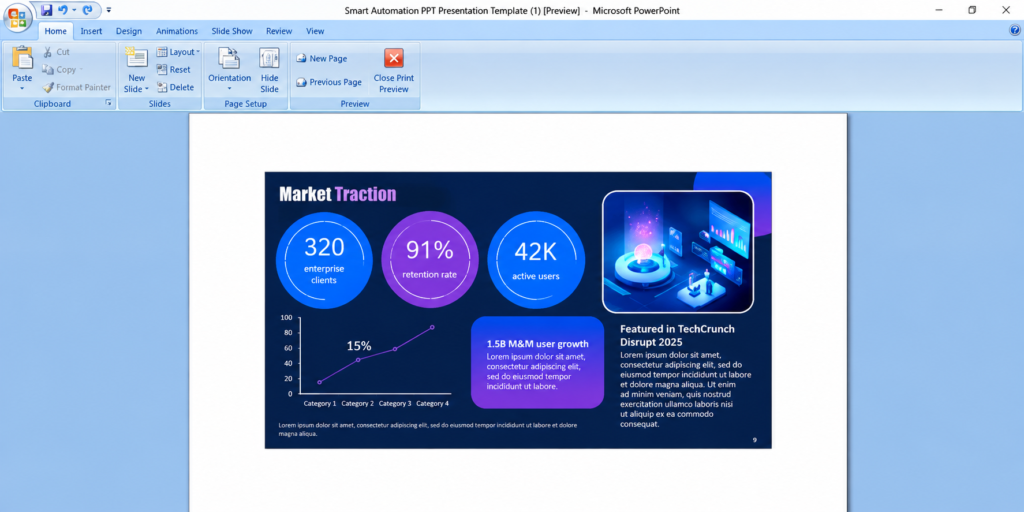
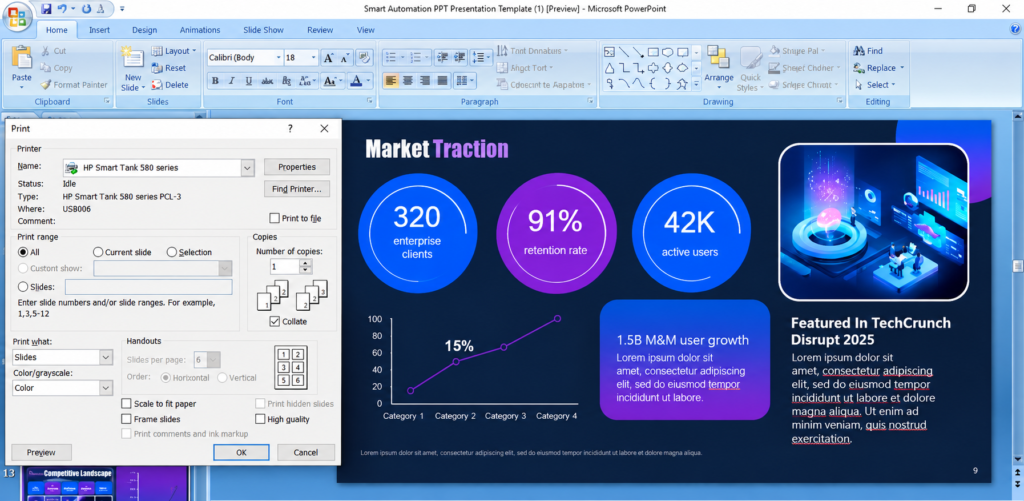
Choose your printer, set the page range if you only need specific slides, and confirm color or grayscale settings depending on whether your notes contain any color-coded text.
Step 5: Print
Click Print. Each slide will now print on its own page with the speaker notes included underneath.
How to Print With Notes on Mac?
Step 1: Open Print from the File menu
Go to File, then Print, in PowerPoint for Mac.
Step 2: Open the layout options
In the print dialog, find the dropdown menu that usually defaults to a generic print setting, and select PowerPoint from that list if it is not already showing PowerPoint-specific options.
Step 3: Choose Notes as the print layout
Look for the Layout or Print What section and select Notes. This is the equivalent of the Notes Pages option in the Windows version.
Step 4: Preview and confirm
Check the print preview panel to make sure the notes are visible under each slide before sending the job to your printer.
Step 5: Print
Confirm your printer and page range, then print as usual.
Printing Notes From Google Slides
Google Slides handles this differently since it does not have a built-in Notes Pages print layout the way PowerPoint does. The most reliable method is exporting to PDF first.
- Open your presentation in Google Slides
- Go to File, then Print settings and preview
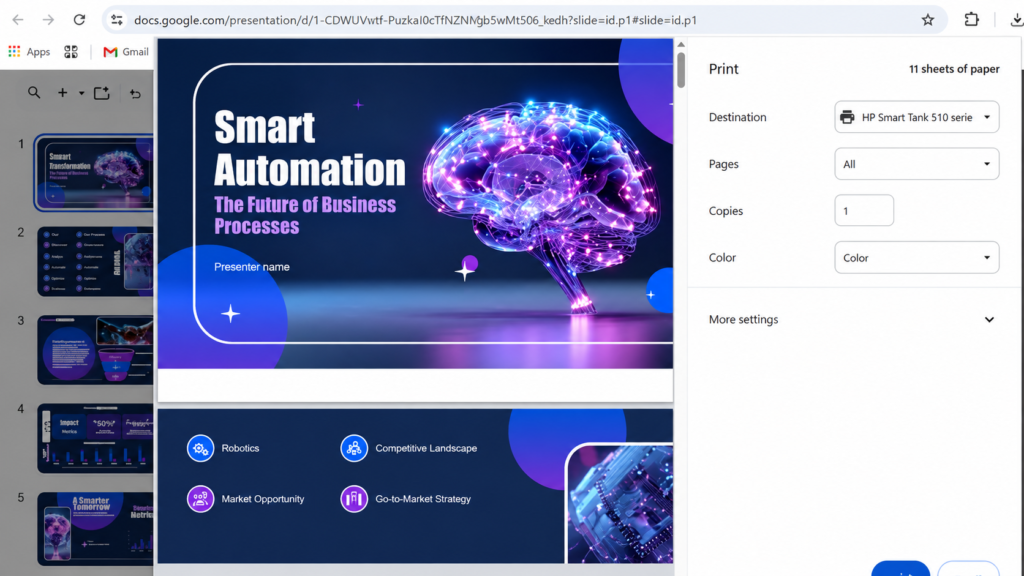
- In the panel that opens, use the dropdown to change from 1 slide without speaker notes to 1 slide with notes

- Click the print icon in that preview window, which generates a properly formatted PDF with notes included
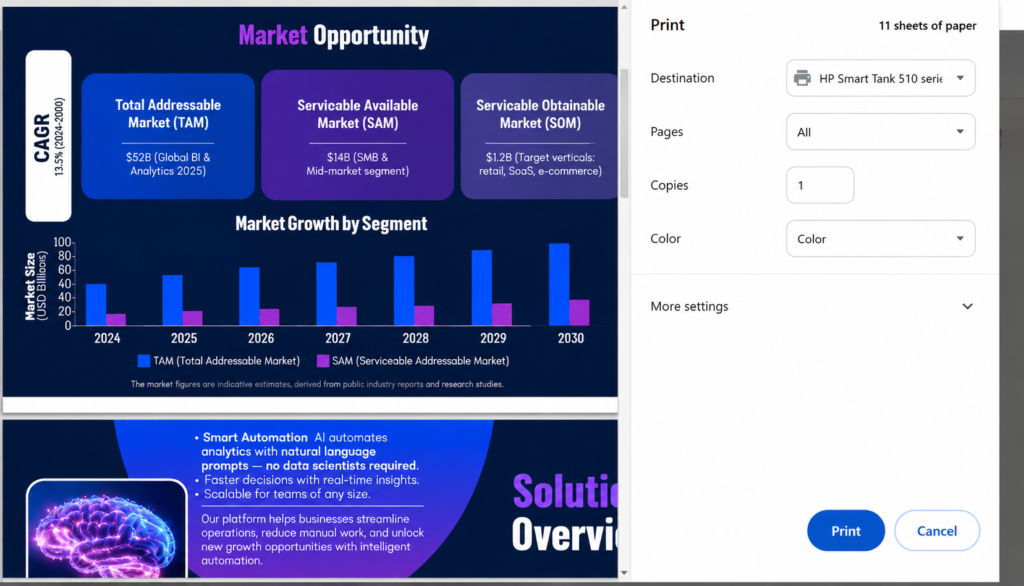
- Print directly from that PDF, or save it for sharing
This PDF-first approach also works well as a backup method in PowerPoint if your printer is having trouble reading the notes layout directly. Exporting to PDF with the Notes Pages layout selected, then printing the PDF, avoids most printer-specific formatting issues.
Fixing Common Notes-Printing Problems
Notes Are Cut Off or Overflowing the Page
This happens when a slide has more typed notes than the default notes page layout can fit. Go to the View tab and select Notes Page to see the full layout PowerPoint uses. You can click into the notes text box on that view and manually resize it, or reduce the font size slightly so long notes fit without spilling onto a second page.
Notes Are Missing Entirely on the Printed Page
This almost always means the print layout is still set to Full Page Slides instead of Notes Pages. Double check the layout dropdown in the print menu described above. It is the single most common reason people think their notes did not save, when in fact they simply were not selected for printing.
The Printed Text Is Too Small to Read
Notes Pages layout automatically shrinks the slide thumbnail and sizes the notes text to fit a standard page. If the resulting text is too small, open the Notes Page view, select the notes text box, and manually increase the font size before printing. This does mean fewer notes fit per page, so long notes may need to be trimmed for a clean printed result.
Formatting Looks Different Than Expected on a Shared Printer or Copier
This is usually a PDF conversion issue rather than a PowerPoint issue. Export the notes pages to PDF first using File, then Export, then Create PDF, and print from the PDF file directly. This avoids formatting inconsistencies between different printer drivers.
Formatting Slides So They Print Cleanly With Notes
A deck that looks great on screen does not always translate well to a printed notes page, since the slide thumbnail on a notes page is considerably smaller than the full-size version. A few habits keep the printed result readable.
- Avoid tiny text or dense charts on slides that will be printed with notes, since the shrunk thumbnail makes small text unreadable on paper
- Keep speaker notes in short, scannable phrases rather than full paragraphs, since printed notes pages have limited space
- Use high-contrast slide backgrounds, since dark or heavily colored slides can print poorly or use excessive ink on a standard printer
- Check your printed layout against a single test page before printing a full deck, especially for a long presentation.
If you are building a deck that you know will need to be printed regularly, whether for a classroom handout, a leave-behind at a meeting, or a training packet, it helps to start from a layout designed with print in mind rather than fixing spacing issues slide by slide afterward. SlidesBrain’s A4 presentation templates are built specifically for this, with layouts sized and spaced for clean printing in both PowerPoint and Google Slides, which saves the trial-and-error most people go through when a screen-first deck does not translate well to paper.
For a broader set of layouts to start from, SlidesBrain’s free templates section includes options across business, education, and general presentation formats, so you are not stuck reformatting a screen-heavy template after the fact.
A Quick Pre-Print Checklist
- Is the print layout set to Notes Pages (Windows) or Notes (Mac), not Full Page Slides?
- Have you scrolled through the print preview to confirm notes actually appear on each slide?
- Are any notes overflowing the page or getting cut off?
- Is the printed text large enough to read without squinting?
- If printing from a shared printer or copier, have you tried exporting to PDF first to avoid formatting drift?
The Bottom Line
Printing PowerPoint with notes comes down to one setting most people simply never notice: switching the print layout from Full Page Slides to Notes Pages. Once that is set correctly, the remaining issues are almost always about formatting, notes overflowing a page, text sized too small, or a printer misreading the layout, all of which are easy to fix once you know where to look.
A deck built with printing in mind from the start avoids most of this entirely, which is worth considering for anything you know will end up on paper more than once.
Frequently Asked Questions: Printing PowerPoint Slides with Notes
What’s the easiest way to print my speaker notes alongside my slides?
To address that, go to File, Print, then Settings. Change the selection from Full Page Slides to Notes Pages (which displays a preview of your slide above and notes below).
Is there a trick to printing just my notes and skipping the slide pictures?
Sorry, there isn’t an easy solution. Click File, Export, then Create Handouts, and that camouflages the images. It then dumps the slides to Microsoft Word. After opening in Word, click slide images, delete, then print the notes.
Why are my notes getting chopped off at the bottom of the page?
That’s when you’ve typed beyond what the printable frame can handle. To resolve that, go to View at the top, then Notes Page. You’ll be taken to the print editor to move the box around to accommodate everything while shrinking the text within.
How can I save ink by printing in black and white?
To save ink when printing black and white, go to File > Print, then look at the last of your print settings. There will be an option for color settings. Change that to either Grayscale or Pure Black and White printing.
Can I squeeze notes for multiple slides onto one sheet of paper?
PowerPoint only allows each slide to be printed on a single page when notes are printed. If you want to save paper, save the presentation as a deck in Word (File > Export > Create Handouts). You can then modify the page layout, add or remove columns, or fit multiple slides and notes on a single page in Word.
How do I save a digital PDF copy of my slides with notes?
Export your presentation as a deck to Word (File > Export > Create Handouts). Then, go to File > Print, and select Microsoft Print to PDF (or Save as PDF on a Mac). Make sure your presentation layout is set to Notes Pages. Then go ahead and print to PDF and choose where on your computer to save the file.
Why are my speaker notes not showing up when I print?
The print layout is almost certainly still set to Full Page Slides. Open the Print menu and change the layout dropdown to Notes Pages on Windows, or Notes on Mac, before printing.
Can I print only the notes without the slide image?
PowerPoint’s built-in Notes Pages layout always includes a small slide thumbnail above the notes text. To print notes alone, you would need to copy the notes text into a separate document, since there is no native option to remove the slide image from that layout.
Does Google Slides have a notes print layout like PowerPoint?
Not directly in the same menu, but the print preview screen in Google Slides has a dropdown to include speaker notes, which generates a printable or savable PDF with the same effect.
Why does my printed deck look different from what I see on screen?
This is usually a printer driver or PDF conversion issue. Exporting the deck to PDF first and printing directly from the PDF file usually resolves formatting inconsistencies.